How to Find and Understand SMS Commands for GPS Trackers
Learn where to find SMS commands for your GPS tracker, how to recognize their format, and why every comma, space, and symbol matters. This beginner-friendly guide includes common examples for APN, server, reset, and data upload settings.

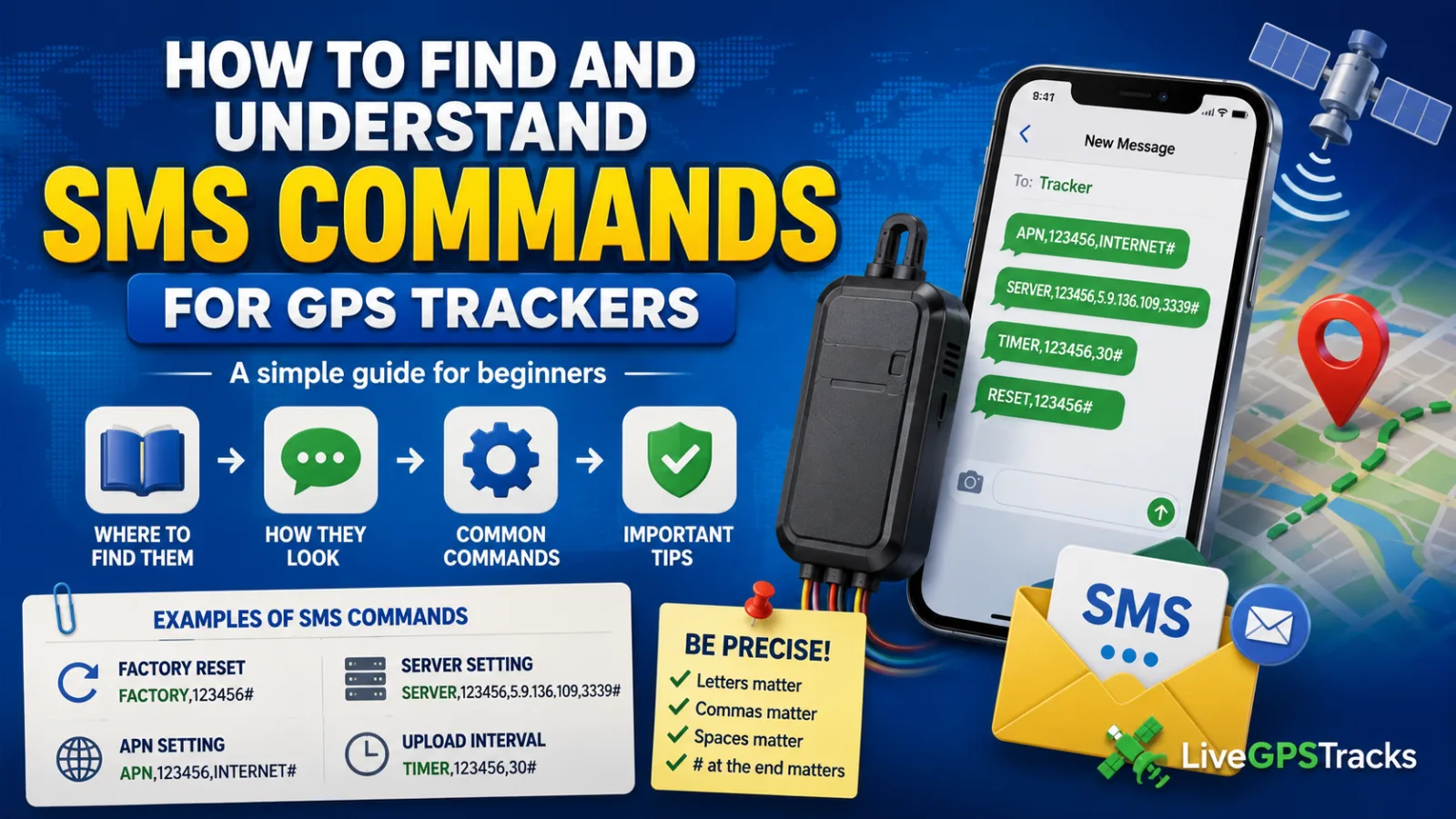
Understanding the Basics of GPS Tracker Configuration
In our previous article, we started exploring what SMS commands are, what types of commands exist, and why they are used to configure GPS trackers.
Now let's take the next step and look at a practical question:
- Where can you find SMS commands?
- What do they look like?
- How do you read and understand them?
When you first encounter GPS tracker configuration, SMS commands may seem confusing: strange words, numbers, commas, and symbols everywhere.
That's completely normal.
Let's break it down together.
📘 Where to Find SMS Commands
The first place to look is the device manual.
Most GPS trackers come with a small booklet inside the box. It is usually called User Manual or User Guide.
The structure of the manual is often something like this:
- Device photos
- Button descriptions
- Technical specifications
- SIM card installation instructions
- SMS commands and configuration examples
This is the section you're looking for.
That's where manufacturers usually describe the commands used to configure and manage the tracker.
👉 One important thing to understand:
The manual is usually the primary source of SMS commands, but it is not always complete.
Some commands or advanced configuration options may only be available from the manufacturer, seller, or online communities that support a particular device.
✉️ What Do SMS Commands Look Like?
Different manufacturers use different formats, but over time many devices have adopted similar command structures.
Typically, a command contains:
- A keyword or command code
- A password (often 123456 or 000000)
- One or more parameters
Here are a few examples from different devices:
pw,123456,...
SERVER,123456,...
TIMER,123456,30#
8040000 IP PORT
At first glance these commands may look intimidating, but they're simply instructions followed by settings.
Your goal is to find similar command examples in your device documentation.
🔧 Common SMS Commands
While command formats vary between manufacturers, most trackers support the same basic configuration tasks.
🔄 Factory Reset
Examples:
RESET
FACTORY,666666#
FACTORY#
pw,123456,reset#
These commands restore the device to its factory settings.
🌐 Internet Configuration (APN)
Examples:
APN,123456,INTERNET#
pw,123456,apn,internet
8030000 internet
These commands tell the tracker how to connect to the mobile network and access the internet.
📡 Monitoring Server Configuration
These commands usually contain words such as SERVER or IP.
Examples:
8040000 IP PORTFor example, when configuring a tracker to work with LiveGPSTracks:
8040000 5.9.136.109 3363Other common formats:
SERVER,123456,0,5.9.136.109,3339,0#
pw,123456,ip,orion.livegpstracks.com,3339#
These commands tell the tracker where to send its GPS data.
⏱ Data Upload Interval
Most trackers allow you to define how often location data is transmitted.
The interval is usually specified in seconds.
Examples:
TIMER,123456,30#(Upload data every 30 seconds)
pw,123456,upload,300#(Upload data every 5 minutes)
🚗 A Special Case: Sinotrack Devices
Many Sinotrack models do not have a separate command for upload intervals.
Instead, they use operating modes with predefined behavior.
Examples:
WORK0000
MOVE0000- WORK mode continuously sends data (typically every 30 seconds).
- MOVE mode sends data only while the device is moving.
⚠️ A Very Important Detail
SMS commands must be entered exactly as specified by the manufacturer.
Everything matters:
- Uppercase and lowercase letters
- Commas
- Spaces
- The
#symbol at the end of the command
For example:
APN,123456,INTERNET#and
APN, 123456, INTERNET#are not the same command.
The second version contains additional spaces, and many trackers will reject it as invalid.
✅ Key Takeaways
- Most basic SMS commands can be found in the device manual.
- Manuals are not always complete, and additional commands may need to be found elsewhere.
- Command formats vary between manufacturers, but the overall logic is similar.
- Never guess the command format.
- Always copy commands exactly as shown.
- Even a single extra space can prevent a command from working.
🧭 Final Thoughts
SMS commands may look complicated when you first see them.
In reality, they are simply a way of telling your tracker what to do.
The more you work with them, the easier they become to understand.
We hope this article has helped you get one step closer to realizing that configuring GPS trackers is not as difficult as it may seem.
Related articles
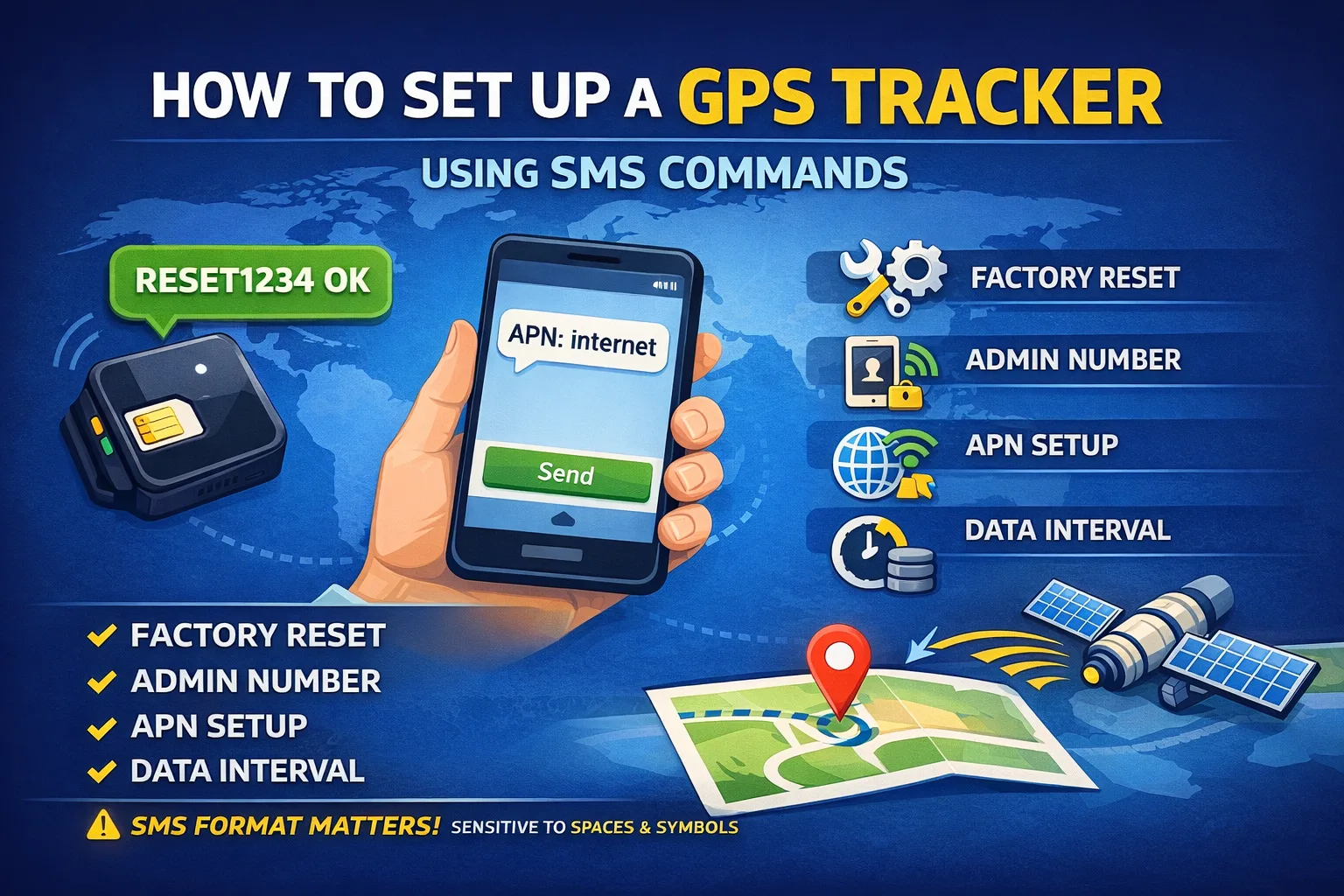
How to Set Up a GPS Tracker Using SMS Commands
Learn how GPS trackers are configured using SMS commands. This beginner-friendly guide explains the most common command types, the correct setup sequence, and common mistakes that prevent trackers from sending location data.
LiveGPSTracks Pricing Explained
Not sure which LiveGPSTracks plan is right for you? Compare the Free, Simple, and Professional plans to find the best option for personal tracking, small teams, or fleet management.

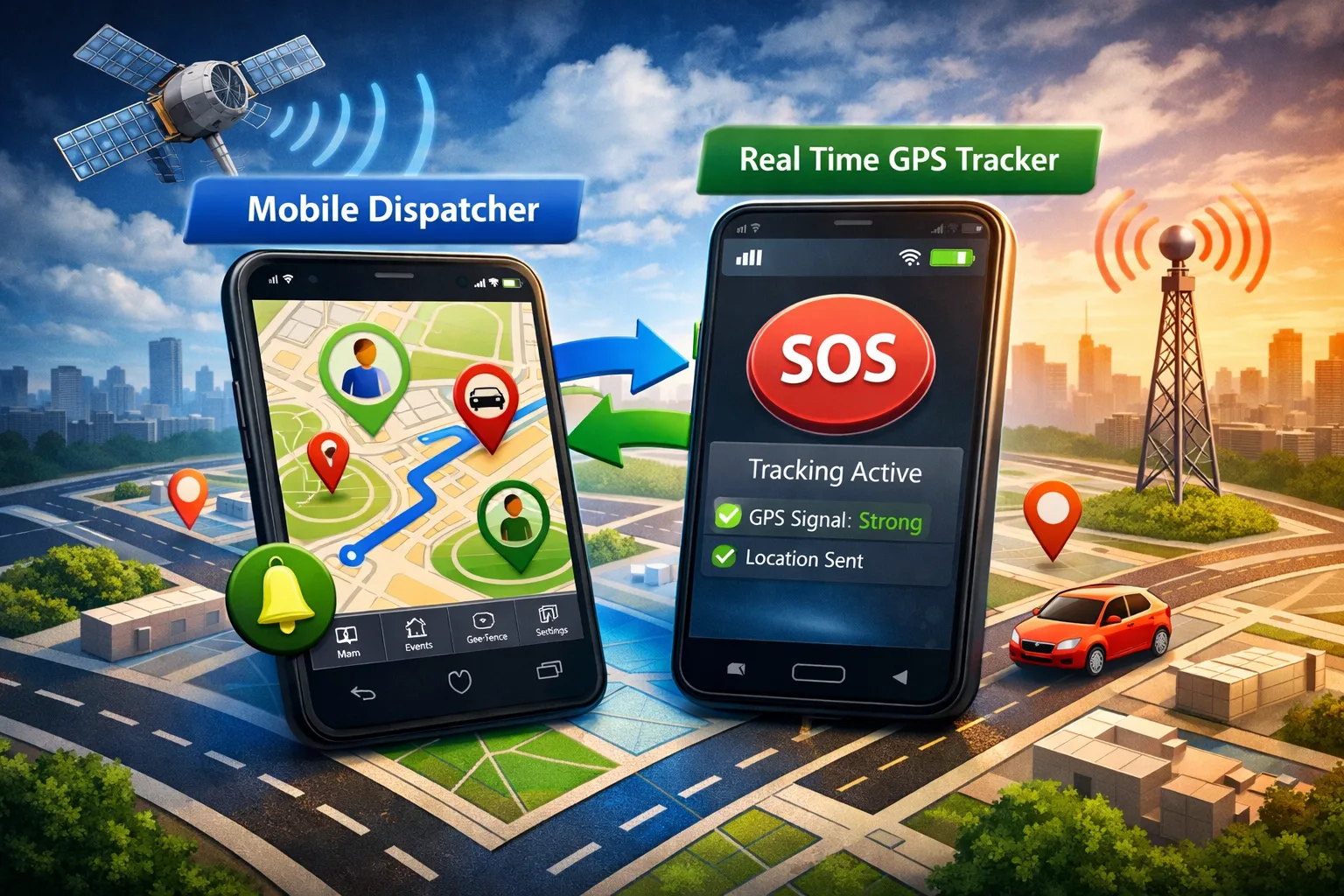
Two Mobile Apps for GPS Tracking: Full Control in One Ecosystem
Discover how two mobile apps work together to create a complete GPS tracking solution. Turn your smartphone into a GPS tracker with Real Time GPS Tracker and monitor everything in Mobile Dispatcher. Real-time tracking, alerts, geofences, SOS features, and more.
LiveGPSTracks: More Than Tracking — A Complete GPS Ecosystem
LiveGPSTracks is more than GPS tracking. Monitor vehicles and assets in real time, record and share your travels, plan routes, convert GPS data, and store tracks securely — all within one powerful GPS ecosystem.

Comments
Sign in to comment.
No comments yet.